

How To Change A Column Into A Row In Excel
Microsoft Excel is nothing but using data in columns and rows. When you are preparing data inExcel, sometime it is necessary to convert data in a column to a row and vice versa. This article explains step by step instructions on how to convert a column of an Excel sheet into a row. This is useful especially when you have data in table format and struggling to convert the columns of the table to rows along with the complete data.
Related: How to fix slow Excel and speed up data processing?
Table of Contents
- Example Data in a Table
- Using Transpose Function
- Directly Using Paste Special
- Using Paste Options Control
- Microsoft Excel for Mac
Example Data in a Table
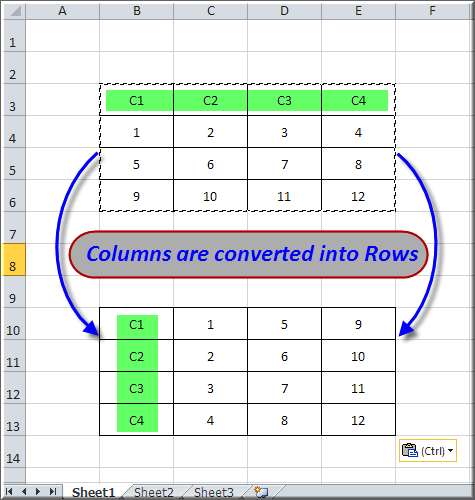
Assume you have data in a table in an excel sheet as shown in the picture beside. Now you want to convert the complete table from columns to rows format. Copying and pasting each cell is a time consuming and error prone process.

Using Transpose Function
Microsoft Excel offers a simple functionality called "Transpose" to do such a difficult task in a few clicks. Follow the below steps to understand the transpose functions.
- Select the complete table data and copy to clipboard using Ctl+C shortcut.
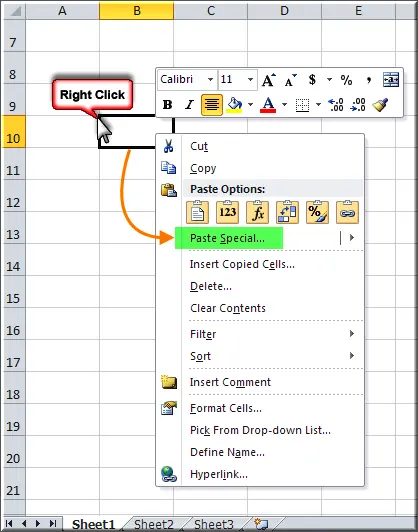
- Right click on the cell where you want to paste it.
- Click on the option "Paste Special" from the context menu as shown in the picture below.
- A new popup window will open as shown below.
- Click on the checkbox "Transpose" and then click on "OK" button.

Now all your table data is transposed from rows to column format. This can be used for a single row or column to a big table of data spread into multiple columns and rows.
Directly Using Paste Special
When you right click on a cell, you also can click on the "Arrow" mark next to "Past Special" to see complete paste options including "Transpose" function as shown in the below picture.

Related Articles:
Using Paste Options Control
Whenever you paste content in a cell you shall notice a small button appearing as "Paste Options (Ctrl)". Once you used "Transpose" function, it will appear automatically in the paste options as a frequently used option. Hence from next time onwards, just copy the table and paste it in a cell where you want and click on the "Paste Options (Ctrl)" to use "Transpose" option.

Microsoft Excel for Mac
Similar to Windows version, you can use transpose function in Microsoft Excel for Mac also. After copying the content, simply right click on the cell where you want to paste and choose "Transpose" option. This will paste the content by converting rows into columns.

Alternatively, you can choose "Paste Special…" to open the dialog box. Here, you can check the "Transpose" option and click "OK" to paste the transposed data.

You can also press "Control + Command + V" keyboard shortcuts to open paste special dialog box.
How To Change A Column Into A Row In Excel
Source: https://www.webnots.com/how-to-convert-column-to-row-in-excel/
Posted by: resternits2000.blogspot.com
0 Response to "How To Change A Column Into A Row In Excel"
Post a Comment